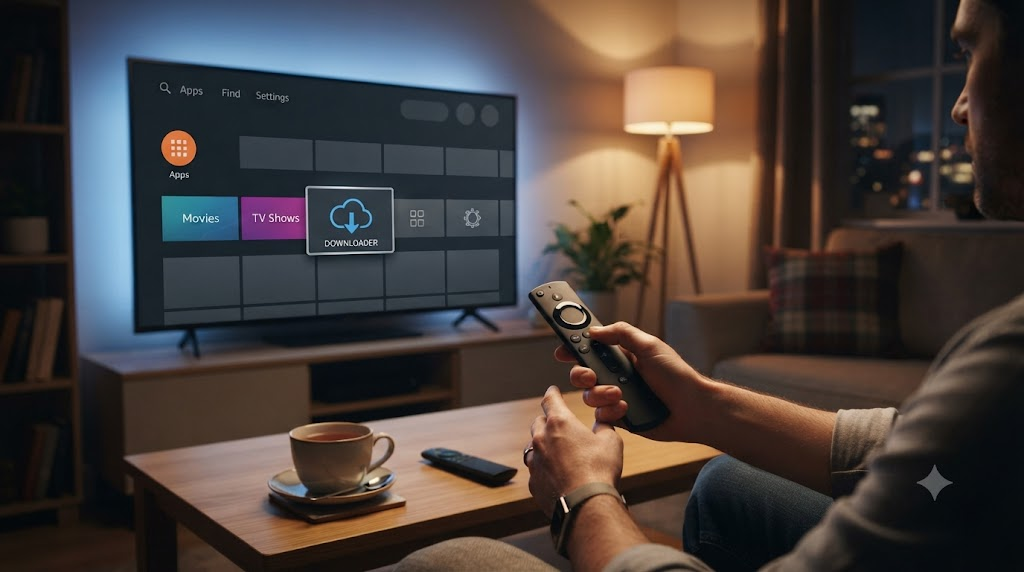
Amazon occasionally renames menus after Fire OS updates
How to install downloader on firestick uk on a new stick
Brand-new UK sticks still need the same flow. Unbox, connect Wi-Fi, update Fire OS if prompted, then run how to install downloader on firestick uk before you add any sideloaded players.
Gifted or second-hand devices may already have Developer Options unlocked. Check About anyway. If the developer message already shows, skip the seven clicks and continue from Search.
Write the seven steps on a note for relatives who are not technical. Most people finish how to install downloader on firestick uk faster when someone reads the clicks aloud.
When you finish, test Downloader with a small known-good APK from a trusted publisher. Confirm Install unknown apps still lists Downloader as On, then delete the test package to free space.
That habit — install, verify, clean up — keeps every Firestick in the house tidy after each use of this guide.
how to install downloader on firestick uk is one of the first skills every Amazon Fire TV Stick owner needs. This 2026 UK guide shows the proven 7-step path with screenshots for every tap.
Before you start: this only works on Fire TV Sticks running Fire OS. Some newer, cheaper models now ship with Vega OS, which has no Downloader app or sideloading option at all — check our Vega OS compatibility tracker first if you are not sure which one you have.
Already installed it and hitting an error, or not sure what to do next? See our Downloader troubleshooting guide.
Quick path: install Downloader on your Firestick in a few Settings taps, then you can sideload apps outside the Amazon Appstore.
- Open Settings and turn off privacy / data monitoring
- Unlock Developer Options
- Install Downloader from Search
- Allow Install unknown apps
This UK guide walks through every tap with screenshots. Downloader (by AFTVnews) is free on the Amazon Appstore and is the standard tool Firestick owners use before installing players such as TiviMate or IPTV Smarters.
Need a subscription after setup? Start a SmartTVs free IPTV trial, then follow our full Firestick IPTV setup guide.
How to install downloader on firestick uk (step-by-step)
- Launch your Firestick
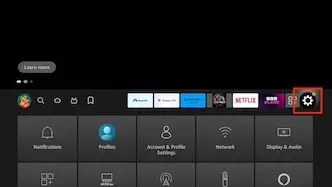
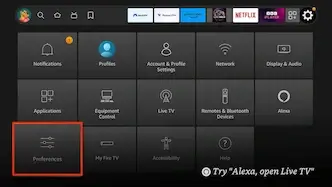
- Go to Settings (gear icon on the top menu)
Select Settings
- Select Preferences
Select Preferences
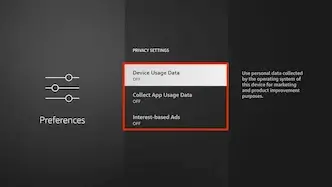
- Select Privacy Settings
Select Privacy Settings
- Turn off all items here (Device Usage Data, Collect App Usage Data, Interest-based Ads)
Turn off all items here
- Click Back on your remote
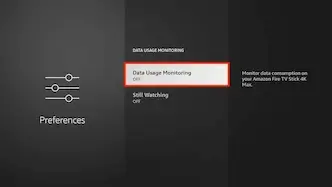
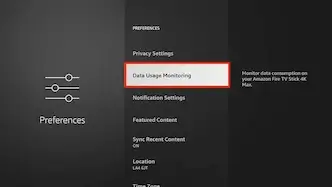
- Select Data Usage Monitoring
Select Data Usage Monitoring
- Turn off Data Usage Monitoring
Turn off Data Usage Monitoring
- Click Back twice on your remote
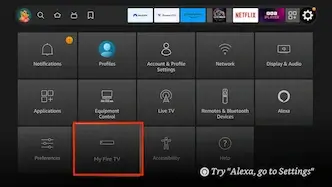
- Select My Fire TV. On newer firmware this may be labelled Device & Software
Select My Fire TV
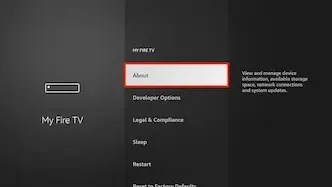
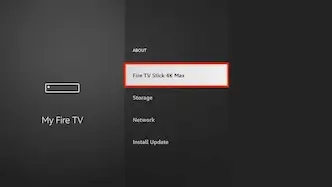
- Select About
Select About
- You will see the name of your Fire TV device at the top. Click it 7 times until it says you are a developer — this unlocks Developer Options so you can allow unknown apps later
You may need to click here 7 times to turn on developer options
- Click Back and go to your Home Screen
- Use your remote to highlight the Search (Find) icon, then press Down to highlight the Search field
- Select Search. We are installing Downloader here — it lets you sideload apps that are not available in the Amazon store
Select Search
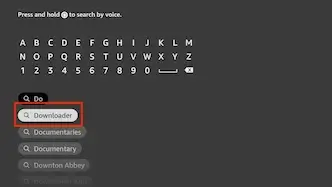
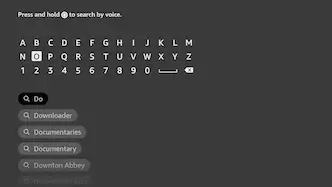
- Start typing Downloader until you see it appear underneath
Start typing Downloader
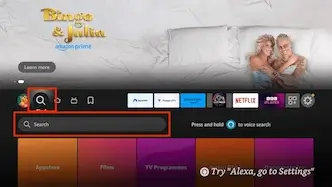
- Select Downloader from the suggestions
Select Downloader
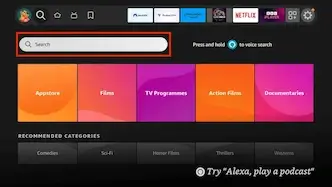
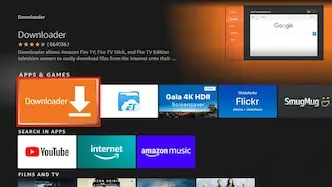
- Select the Downloader app
Select Downloader
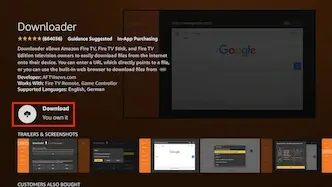
- Select Download
Select Download
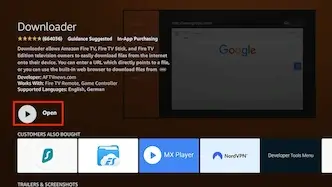
- Select Open
Select Open
- Select Allow when asked to give Downloader access to files (needed so it can install APKs)
Select Allow
- Select OK on the Quick Start Guide
Select OK
Allow Install unknown apps (one-time)
The first time you download an APK with Downloader, Fire OS will block the install until you allow unknown apps for Downloader only.
- When you see the security warning, select Settings
Click on Settings
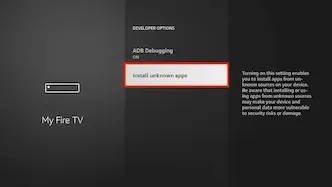
- Select Install unknown apps
Select Install unknown apps
- Select Downloader and switch it from Off to On. You will not be asked again for this app
Select Downloader so it turns on
Downloader is ready
Downloader is now set up on your Firestick. Next: install your IPTV player and add your login.
- How to Setup IPTV on Firestick UK 2026
- Best IPTV Apps for Firestick UK 2026
- Start a free IPTV trial on SmartTVs
Legal disclaimer
This tutorial is educational only. Firestick UK does not own, host, operate, resell, or distribute streaming apps, addons, websites, IPTV feeds, or pirated services. Installing Downloader from the Amazon Appstore is legitimate. You are solely responsible for any apps or media you access afterwards — only use content and subscriptions you are entitled to watch under UK law. Do your own due diligence on any third-party service.
Why how to install downloader on firestick uk matters in 2026
Knowing how to install downloader on firestick uk unlocks apps outside the Amazon Appstore. UK owners use it before players, browsers, and tools that Amazon does not list.
The official Downloader by AFTVnews is free. Stay on Amazon Search results — avoid random APK clones when you practise installing Downloader on a UK Firestick.
Checklist before you install Downloader
Use UK Wi-Fi, a charged remote, and your Amazon login. Give yourself ten quiet minutes. Optional: note our Firestick IPTV setup guide for after Downloader.
Downloader Search failing on Firestick (fixes)
If Search hides Downloader, set Amazon marketplace to United Kingdom, reboot the stick, and type slowly. Clear Amazon Appstore cache, then retry Downloader on your Fire TV Stick.
You can also open the Amazon Appstore app itself and search there. The listing should show Downloader by AFTVnews.
Common mistakes during Downloader install
Skipping the seven clicks on the device name leaves Developer Options locked. Without that, Install unknown apps never works.
Another mistake is enabling unknown apps for every program. Enable it only for Downloader after the steps above.
What to do after Downloader is installed
Next, install a reputable player and add a legal subscription. Start a SmartTVs free trial, then read best IPTV apps for Firestick UK.
Keep Wi-Fi stable on 5 GHz where possible. Reboot weekly. Uninstall apps you never open so storage stays free for APKs.
Firestick models this guide supports
The same the Downloader setup on Firestick flow works on Fire TV Stick Lite, HD, 4K, 4K Max, and Fire TV Cube. Labels may differ slightly on new firmware.
Troubleshooting Downloader on your Fire TV Stick
Download stuck? Change Wi-Fi or reboot the router, then reopen Downloader.
Install blocked? Confirm Install unknown apps → Downloader is On.
App missing? Check Settings → Applications → Manage Installed Applications.
FAQ about Downloader on Firestick UK
Is the steps above free? Yes. Downloader is free on the Amazon Appstore.
Is it legal? Installing Downloader from Amazon is legal. Pirated streams are not. Use services you pay for.
Do I need a PC? No. The remote and on-screen Search are enough for installing Downloader on a UK Firestick.
Works offline? No. You need internet to download Downloader and later APKs.
Speed and security after install
Clear Downloader cache after large APKs. Prefer HTTPS download links. Remove leftover APK files inside Downloader to free space.
Turn on Amazon two-step verification for the account on the stick. Add a parental PIN if children use the TV. These habits matter as much as learning this Firestick Downloader install.
Bookmark this page. After any factory reset you can repeat this Downloader setup in under ten minutes using the same 7 easy steps.
What Downloader actually does on Firestick
Downloader is a small utility that fetches a file from a URL you paste, then offers to install that file. On Fire OS this is how most people sideload apps that are missing from the Amazon catalogue.
It does not stream TV by itself. Think of it as a bridge: Amazon Search installs Downloader, then Downloader installs the player you choose. That separation keeps the first half of the job simple and repeatable.
UK households often reset sticks after gifts, second-hand buys, or storage clean-ups. Saving this walkthrough means you never hunt forum screenshots again when menus move slightly between firmware versions.
Prepare your Wi-Fi and Amazon account
Before you touch Settings, confirm the stick is online. Open a free app such as BBC iPlayer. If that fails, fix Wi-Fi first — Downloader cannot download without a working connection.
Sign into the correct Amazon account for your household. Shared sticks sometimes stay logged into a guest profile, which can hide Appstore purchases or recommendations. A clean login avoids confusing Search results.
Place the stick in a ventilated HDMI port. Overheating during long downloads is rare, but a cramped cabinet can make the remote feel laggy and cause you to mis-click through Preferences.
Understanding Developer Options safely
Developer Options sounds advanced, yet Amazon designed the seven-click unlock for exactly this kind of sideload workflow. You are not jailbreaking the device. You are revealing a menu Amazon already ships on retail UK sticks.
Once unlocked, leave ADB debugging Off unless you knowingly use a computer. For Downloader alone you only need the unknown-apps permission later. Keeping ADB off reduces remote attack surface on home networks.
If the developer message never appears, you may be clicking the wrong line. The clickable device name sits at the very top of the About screen, not the serial number rows beneath it.
Privacy toggles explained in plain English
Turning off usage data and interest-based ads does not break Netflix or iPlayer. It simply reduces how much behavioural data the stick sends while you configure sideloading. You can revisit those toggles later if you prefer Amazon personalisation.
Data Usage Monitoring is separate from your broadband cap. Disabling it stops Fire OS nagging about background traffic during installs. Re-enable it afterwards if you like the reminders.
Choosing the correct Downloader listing
Search suggestions can show lookalike names. Prefer the result published by AFTVnews with the familiar orange icon. Read the short description before you press Download.
Paid “boosted” listings sometimes appear above organic results. Scroll once if the first card looks unfamiliar. Taking five extra seconds here prevents installing a junk utility with aggressive ads.
Allowing file access and unknown apps
Fire OS asks for storage access so Downloader can save the APK. Without Allow, installs fail silently. The Quick Start OK screen is harmless — dismiss it and continue.
The unknown-apps prompt appears the first time you try a non-store package. Jump into Settings from that dialog, open Install unknown apps, and toggle only Downloader. Leave browsers and email Off.
If you ever factory reset, you must repeat both Allow and unknown-apps. The stick forgets those grants. That is normal Amazon security behaviour, not a fault in your remote.
Storage, cache, and long-term maintenance
4K Max units have more storage than Lite models, yet both fill up with old APKs. Inside Downloader, open the file manager and delete packages you already installed. Keeping a few hundred megabytes free avoids failed updates.
Clear cache — not data — if Downloader behaves oddly. Clearing data wipes your typed URLs and forces the Quick Start again. Cache clears temporary files only.
Schedule a monthly reboot. Fire OS background services settle after long uptimes. A reboot plus this Downloader checklist after major Amazon updates keeps menus predictable.
When to use a VPN on UK Wi-Fi
A VPN is optional for installing Downloader from Amazon. It becomes more relevant on public hotel Wi-Fi or when you want encrypted DNS. Install any VPN from the Amazon Appstore first when possible, then use Downloader for apps the store lacks.
Never paste APK URLs from strangers in chat groups. Prefer written guides on sites you trust, HTTPS links, and publishers with a track record. Curiosity clicks are how malware reaches living-room devices.
Recap you can follow from the sofa
Open Settings, reduce privacy monitoring, unlock Developer Options with seven clicks on the device name, install Downloader from Search, allow files, then enable unknown apps for Downloader only. That is the entire sofa-friendly path.
Afterward, move on to a player guide and a legal subscription trial. Keep this article bookmarked so every new stick in the house follows the same seven easy steps in 2026.
Amazon occasionally renames menus after Fire OS updates
How to install downloader on firestick uk on a new stick
Brand-new UK sticks still need the same flow. Unbox, connect Wi-Fi, update Fire OS if prompted, then run how to install downloader on firestick uk before you add any sideloaded players.
Gifted or second-hand devices may already have Developer Options unlocked. Check About anyway. If the developer message already shows, skip the seven clicks and continue from Search.
Write the seven steps on a note for relatives who are not technical. Most people finish how to install downloader on firestick uk faster when someone reads the clicks aloud.
When you finish, test Downloader with a small known-good APK from a trusted publisher. Confirm Install unknown apps still lists Downloader as On, then delete the test package to free space.
That habit — install, verify, clean up — keeps every Firestick in the house tidy after each use of this guide.