How to set up IPTV on Firestick in the UK (2026)
If you want live UK channels, Premier League fixtures, and on-demand films on your Amazon Fire TV Stick without juggling five separate subscriptions, this guide walks you through a clean Firestick UK setup from start to finish. You will need a Firestick (Lite, HD, 4K or 4K Max), a stable Wi‑Fi connection from BT, Virgin Media, Sky Broadband, EE, TalkTalk or another UK ISP, and about fifteen minutes.
Firestick UK is built for British households: WhatsApp checkout, sterling pricing, and a 30-day money-back window if the service is not right for you. Prefer to compare plans first? See IPTV UK pricing or start a trial from the homepage pricing section.
What you need before you start
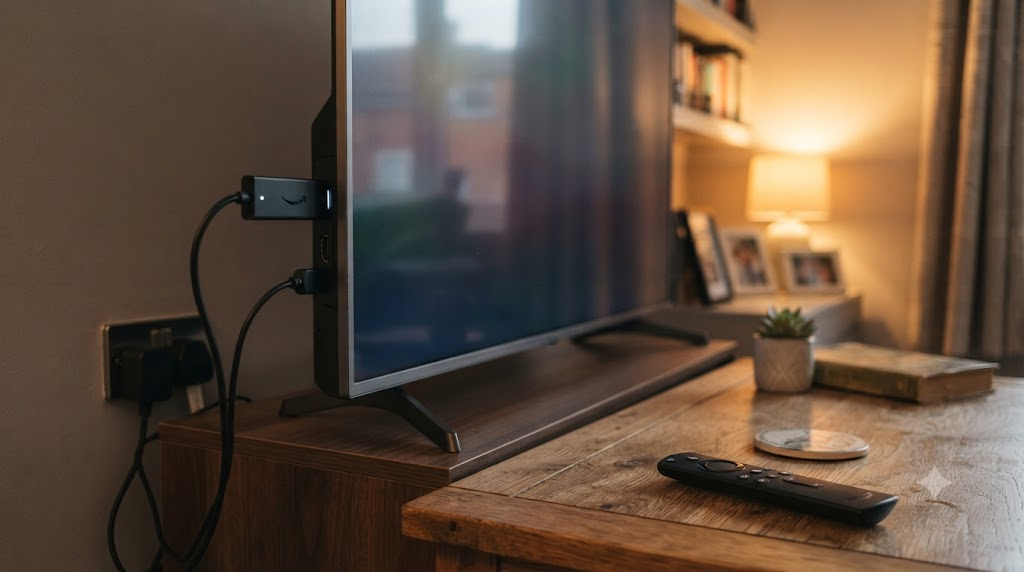
- An Amazon Fire TV Stick plugged into HDMI with the remote paired
- Your Amazon account signed in on the device
- Wi‑Fi that can stream HD comfortably (roughly 10 Mbps+ for HD; 25 Mbps+ for 4K where available)
- A Firestick UK subscription or trial login (M3U / Xtream Codes details sent after WhatsApp order)
- Optional: a VPN if your network blocks unknown app stores — most UK home broadband does not need one for this install
Supported viewing apps are covered in our best IPTV apps for Firestick UK guide. Most customers use IPTV Smarters Pro or TiviMate.
Step 1 — Update Firestick and free space
Open Settings → My Fire TV → About → Check for Updates. Install any pending system update, then reboot. Under Settings → Preferences → Device Options → Storage, clear unused apps if space is tight. A fresh Firestick makes Downloader installs more reliable and reduces random buffering later.
Step 2 — Enable apps from unknown sources
Amazon locks sideloading by default. Go to Settings → My Fire TV → Developer Options (on older sticks: Settings → Device → Developer Options) and turn on Apps from Unknown Sources / Install unknown apps. When prompted for Downloader, allow it specifically. This does not jailbreak your stick; it only lets you install APKs you choose.
Step 3 — Install the Downloader app
- From the Firestick home screen open Find → Search and type Downloader.
- Install the official Downloader by AFTVnews.
- Open it once and accept storage permission so APKs can save.
Downloader is the safest common route for IPTV player APKs on Firestick in the UK. Avoid random “IPTV APK” sites that bundle malware. For the full walkthrough with screenshots, see our step-by-step Downloader install guide.
Step 4 — Install your IPTV player (IPTV Smarters Pro or TiviMate)
IPTV Smarters Pro is simple for first-time users: login fields for Xtream Codes username, password and server URL. TiviMate is preferred by many football fans for EPG grids and multi-view. For a dedicated walkthrough see install TiviMate on Firestick UK and our comparison TiviMate vs IPTV Smarters UK.
- Open Downloader and enter the APK URL or code your Firestick UK WhatsApp agent sends you (or a trusted official APK link for the player).
- Tap Go, wait for the download, then Install.
- Open the new app from Your Apps / Apps Library.
Step 5 — Log in with your Firestick UK credentials
After payment or trial approval on WhatsApp, you receive either:
- Xtream Codes API: username, password, and host/server URL
- M3U playlist URL: a single playlist link
In IPTV Smarters Pro choose Login with Xtream Codes API, paste the three fields exactly (no trailing spaces), and load. In TiviMate add a new playlist → Xtream Codes or M3U as instructed. Give the playlist a clear name such as “Firestick UK” so you can manage renewals later.
First load can take one to two minutes while the EPG (TV guide) builds. BBC One, ITV, Channel 4, Sky sports packs and international categories should appear once the guide finishes syncing.
Step 6 — Pin the app and set video quality
Long-press the app icon → Move to Front so it is always on your home row. Inside the player, set:
- Hardware decoder on (helps Firestick 4K Max)
- External player off unless you know you need VLC
- EPG offset 0 for UK times unless your clock is wrong
If you own a Fire TV Stick 4K or 4K Max, confirm channels marked UHD actually stream in 4K on your TV’s HDMI port and that your Virgin/BT/Sky line has enough headroom. More detail: does IPTV work on Firestick 4K.
Watching UK live TV, sport and VOD
Typical Firestick UK line-ups include UK entertainment (BBC, ITV, Channel 5), news, kids, movies on demand, and sports categories covering Premier League, Champions League and pay-per-view events when listed. Availability depends on your plan and the rights landscape — treat channel lists as living catalogues, not permanent promises.
For match nights, connect the Firestick by Ethernet adapter if Wi‑Fi in your lounge is congested, pause other 4K streams on the same Virgin or BT hub, and sit within a strong 5 GHz band. If you still see stalls, read fix IPTV buffering on Firestick UK.
Smart TVs, phones and multi-device
Firestick is the easiest path for most flatscreens, but Firestick UK also supports other Android TV boxes and, for some plans, additional concurrent connections. Samsung/LG Smart TV users without a stick should message WhatsApp for the current Smart TV method rather than forcing an unsupported APK. Device matrix: what devices work with Firestick UK.
Multi-device tabs are available at checkout (see pricing). Do not share one login across more connections than your plan allows — that causes kicks and buffering that look like “IPTV not working”.
Pricing reminder (1 device)
Current 1-device Firestick UK plans:
- 1 month — £18.98
- 3 months — £33.98
- 6 months — £44.98
- 12 months — £64.98
Longer terms lower the effective monthly cost. Checkout is handled over WhatsApp with UK-friendly payment options. Full breakdown: how much does IPTV cost in the UK. Every order includes a 30-day money-back window — details on the refund policy.
Is this legal and is Firestick UK legit?
IPTV technology itself is legal; what matters is whether the service you buy is authorised to distribute the channels you watch. Read our plain-English notes on is IPTV legal in the UK and is Firestick UK legit, plus the legal disclaimer. We focus on transparent pricing, human WhatsApp support and a refund window so you can evaluate the service yourself.
Common setup mistakes (and quick fixes)
- Wrong server URL — copy/paste from WhatsApp; do not retype http vs https.
- Unknown sources still off — Downloader install fails until the permission is granted for that app.
- EPG empty — wait, then force-refresh guide in the player; reboot Firestick once.
- Buffering only on Wi‑Fi — move closer to the hub, use 5 GHz, or add a cheap USB Ethernet adapter.
- App crash after update — clear app cache under Settings → Applications → Manage Installed Applications.
More answers live in the Firestick UK FAQ.
After setup: keep it stable
Once a week, reboot the stick. After Amazon system updates, reopen your player and confirm the playlist still loads. Renew before expiry via WhatsApp so you are not locked out mid-season. If you are still choosing a provider, compare options in best IPTV for Firestick UK.
Quick checklist
- Update Firestick firmware
- Allow unknown apps for Downloader
- Install Downloader from the Amazon store
- Sideload IPTV Smarters Pro or TiviMate
- Enter Xtream or M3U details from WhatsApp
- Pin the app, test BBC/ITV and a sports channel
- Keep the 30-day refund window in mind while you evaluate
Ready when you are: open the Firestick UK homepage, pick a plan under pricing, and message WhatsApp for same-day credentials on most orders. For brand context see About Firestick UK or Contact.
Detailed Firestick models used in UK homes
Amazon sells several sticks that work with Firestick UK. The Fire TV Stick Lite is fine for HD lounge viewing on a budget. The standard Fire TV Stick (latest generation) adds a better remote and slightly stronger Wi‑Fi. The Fire TV Stick 4K and 4K Max are the sweet spot if your television supports Ultra HD and you want smoother app multitasking during Premier League weekends. Older second-hand sticks still work, but slow storage and outdated Fire OS builds cause more “IPTV not working” tickets than the service itself.
Whatever model you own, keep the remote batteries fresh. A laggy remote makes typing long Xtream passwords painful; use the Firestick app on your phone as a keyboard when WhatsApp sends credentials.
Broadband reality checks for BT, Virgin, Sky and EE
IPTV is only as steady as the path from your router to the stick. On Virgin Media, pack congestion in the evening can show up as micro-stutters even when the speed test looks fine — try a wired adapter. On BT and EE Full Fibre, separate the stick onto a 5 GHz SSID and avoid mesh “smart connect” hopping if channels drop mid-match. Sky Broadband hubs sometimes isolate guest networks; put the Firestick on the main LAN. TalkTalk and Three 5G home routers work when signal is strong, but mobile broadband can throttle long streams — test during a live BBC or ITV programme before a big kick-off.
Target at least 10 Mbps free for one HD stream and 25 Mbps+ for 4K. If the household is already streaming Netflix and Zoom calls, upgrade the plan or limit concurrent devices on match day.
Xtream Codes vs M3U — which should you use?
Most Firestick UK customers receive Xtream Codes (three fields). That format is easy to renew and works cleanly in IPTV Smarters Pro and TiviMate. An M3U URL is a single playlist link — handy for quick tests, slightly less tidy for category management. Never paste credentials into random “playlist checker” websites; treat them like banking passwords. If you suspect a leak, message WhatsApp immediately for a password reset.
EPG, catch-up and VOD explained
The electronic programme guide (EPG) lists what’s on BBC One, ITV1, Channel 4 and sports channels throughout the day. After first login, allow a full sync. Catch-up (where offered) lets you rewind recent broadcasts; VOD folders hold films and series. If categories look empty, pull to refresh or clear the player cache rather than reinstalling. Reinstalling without backing up your playlist means typing everything again.
Parental controls and kids’ profiles
Firestick itself has Amazon parental controls under Settings. Inside your IPTV app, hide adult categories if present and pin a kids folder for CBBC-style content. Agree household rules before leaving the remote with children — the same as you would with a Sky or Virgin set-top box.
Travel, second homes and holidays
Taking the Firestick to a Spanish villa or a hotel is common. Hotel Wi‑Fi is often unreliable for live sport; a travel 4G/5G router helps. Remember your plan’s concurrent-stream limit if someone at home is still watching. For longer trips abroad, confirm with support that your account can roam — some panels restrict unusual login locations to reduce abuse.
When to contact WhatsApp support
Message support if credentials fail after a correct paste, if entire categories vanish, or if you need a Smart TV setup path instead of Firestick. Include your order name, device model and a short description. Do not send screenshots that expose full passwords in public Facebook groups. For non-urgent questions, the FAQ and contact page point you the right way.
Why people switch from stacked UK TV packages
A typical British lounge might already pay for Netflix, Disney+, Amazon Prime Video, and a Sky or NOW Sports add-on. Firestick UK is positioned as a single-app way to gather live channels and sport-style line-ups for a predictable monthly or annual fee in pounds. It will not replace every official catch-up app (iPlayer still has exclusives), but many households use both: iPlayer for BBC exclusives and Firestick UK for the broader live grid.
If you are still researching, start with the setup above, test within the 30-day money-back window, and only then commit to a 6- or 12-month plan at £44.98 or £64.98 for one device. Multi-device pricing is available when you order via WhatsApp.
Final tip for first-time installers
Do the install when you are not rushing out the door. Have the WhatsApp thread open on your phone, use the Firestick mobile remote keyboard, and verify one entertainment channel plus one sports channel before you celebrate. That five-minute test saves a Saturday night panic. When you are ready, return to the pricing section on the homepage and place your order.